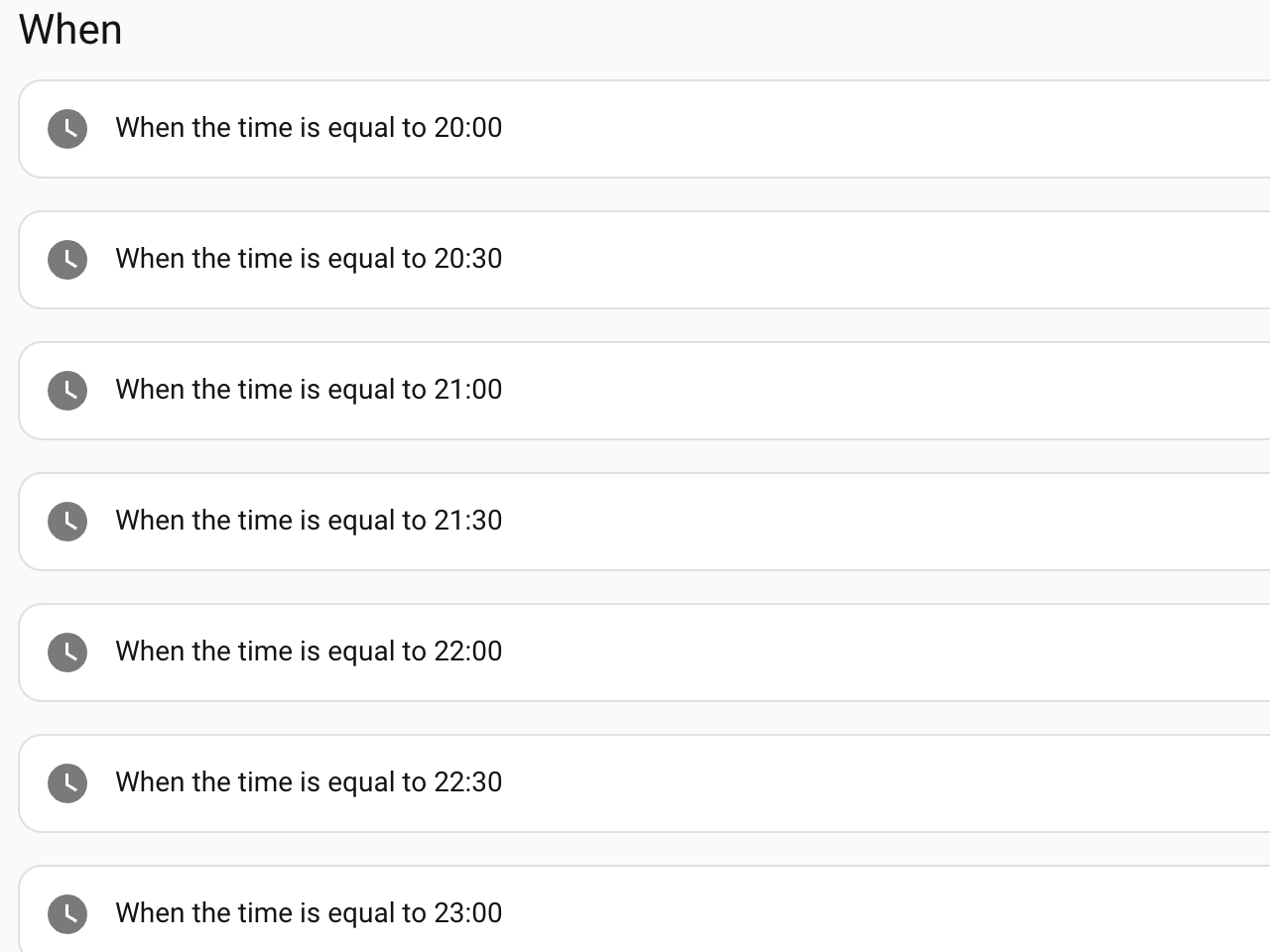
We rise early, so getting to bed at a reasonable hour can be a challenge, whether it’s summer and the sun is still up past 21:00, or we’re sucked into a streaming show. One of the first things I added to Home Assistant was an evening time announcement to subtly remind or shame us that it is getting late. Since we generally stream using the Apple TV, I added the Apple TV integration for Home Assistant.
At first, I thought I could send a message to display on the screen every half hour in the evening using HomeKit, but I could not get any version of this example to work. I’m sure I am doing something wrong, or my old Apple TV, which barely runs tvOS 26, has issues. I would still love to add an on-screen notification if anyone has a working example.
I landed on checking whether media was playing on the Apple TV, pausing whatever was playing, making the time announcement, and then letting it play again. Pausing what is playing, even ever so briefly, gets our attention and makes us aware of the time announcement.
To do this, I first set a variable to get the state of the Apple TV:
  - variables:
      appletv_was_playing: '{{ is_state(''media_player.living_room'', ''playing'') }}'
With that variable set, I can check its state and take action:
  - if:
      - condition: template
        value_template: '{{ appletv_was_playing }}'
    then:
      - action: remote.send_command
        target:
          entity_id: remote.living_room
        data:
          command: pause
I announce the time on the various media players throughout the place using Chime TTS.
     - action: chime_tts.say
       target:
         entity_id:
           - media_player.bedroom
           - media_player.living_room
       data:
         announce: true
         cache: true
         volume_level: 0.4
         message: >
           {% from 'speech_macros.jinja' import say_time %}
           The time is {{ say_time(now()) }}.
Then, as an extra measure, add a half-second delay as padding, and then resume whatever was playing. The announce flag interrupts any playing audio, but I have found it just plays over whatever the Apple TV is doing.
  - delay:
      milliseconds: 500
  - if:
      - condition: template
        value_template: '{{ appletv_was_playing }}'
    then:
      - action: remote.send_command
        target:
          entity_id: remote.living_room
        data:
          command: play
I’m not accounting for a bunch of edge cases here: What happens if the Apple TV is paused, or if someone presses play during the announcement? I figured I would address these if they ever became an issue.
As an aside, text-to-speech is unpredictable and sometimes entertaining in how it handles whatever now() tunneled into strftime() outputs. I found a set of natural-language speech macros written in Jinja and tweaked them to my liking, since we prefer 24-hour time. To use this, save these two macros as speech_macros.jinja file in your /config/custom_templates/ folder. Restart or run homeassistant.reload_custom_templates after adding the file.
{% macro _round_min(t, round_min) %}
  {% set minute = ((t.minute + round_min / 2) // round_min) * round_min %}
  {% set hour = t.hour + (1 if minute == 60 else 0) %}
  {% set minute = 0 if minute == 60 else minute %}
  {{ "%02d:%02d:00" % (hour % 24, minute) }}
{% endmacro %}

{% macro say_time(t, round_min=0, format_24h=True) %}
  {% if t is undefined or not t is datetime %}
    Macro Arg Type Error: First argument must be a datetime object
  {% elif round_min is defined and not round_min is integer %}
    Macro Arg Type Error: Second argument must be an integer
  {% else %}
    {% if round_min > 0 %}
      {% set t = today_at(_round_min(t, round_min)) %}
    {% endif %}
    {% set hour = t.hour %}
    {% set minute = t.minute %}

    {% if format_24h %}
      {% if minute == 0 %}
        {{ t.strftime('%H') }} hundred
      {% else %}
        {{ t.strftime('%H:%M') }}
      {% endif %}
    {% else %}
      {% if hour == 0 and minute == 0 %}
        midnight
      {% elif hour == 12 and minute == 0 %}
        noon
      {% elif minute == 0 %}
        {{ t.strftime('%-I') }} o'clock {{ t.strftime('%p') }}
      {% elif minute < 10 %}
        {{ t.strftime('%-I Oh %-M %p') }}
      {% else %}
        {{ t.strftime('%-I:%M %p') }}
      {% endif %}
    {% endif %}
  {% endif %}
{% endmacro %}
You call this with {% from 'speech_macros.jinja' import say_time %} The time is {{ say_time(now()) }}. as your message.
So these don’t play after we go to bed; I check, for of all things, that the white noise machine is turned on. A sign we have gone to bed. You may have other triggers, or you might set a boolean that resets every day.
Do we get to bed on time? Most nights.